
How the Page Editor and Modules Work Together
Last updated on October 28, 2025 at 11:10 AM
Page Editor and Modules
How the Page Editor and Modules Work Together
Our content management system integrates two primary components to help you build dynamic web pages: the Flexible Content Editor and the WYSIWYG editor, which includes module shortcodes.
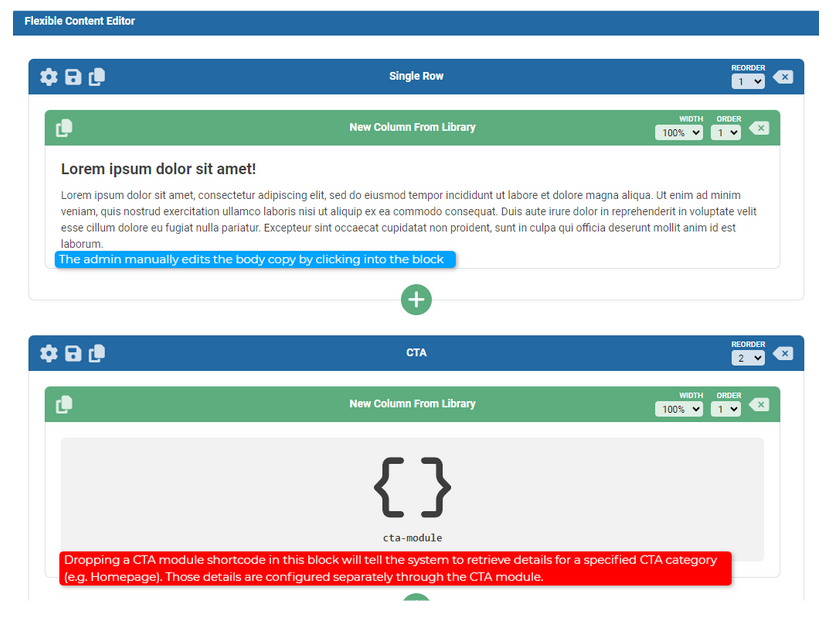
Step 1: Define Content Sections
Begin by setting the layout of your page using the Flexible Content Editor. This powerful tool allows you to:
- Adjust page rows and columns
- Create custom content blocks
- Establish the overall page structure
Step 2: Edit Content with WYSIWYG
After establishing your page layout, use the WYSIWYG (What You See Is What You Get) editor to populate your content blocks. This editor functions similarly to a standard word processor, providing familiar editing tools.
Content Types
Static Content
Many content blocks will contain static elements such as:
- Body copy
- Standalone images
- Text styling and formatting
- Image alignment and sizing
Dynamic Content with Module Shortcodes
For specialized functions and features, you'll use module shortcodes. These are instruction sets that tell a content block how to behave and what information to retrieve based on the selected module and category.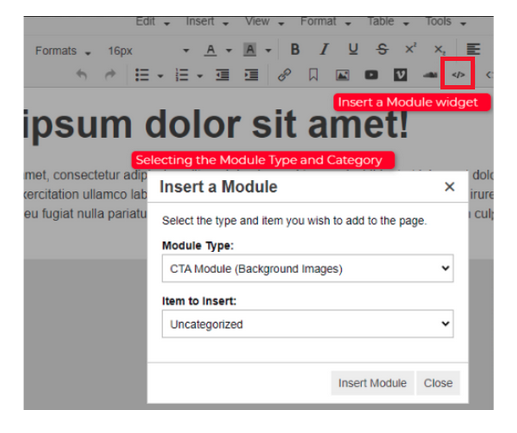
Example: CTA Module
A Call-to-Action (CTA) module demonstrates how shortcodes can transform a static block into an interactive, functional element across both the backend (epicPlatform) and frontend (live website).
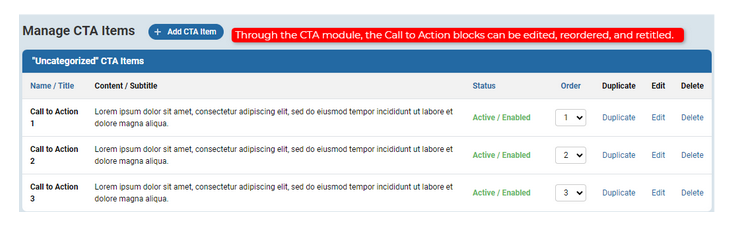
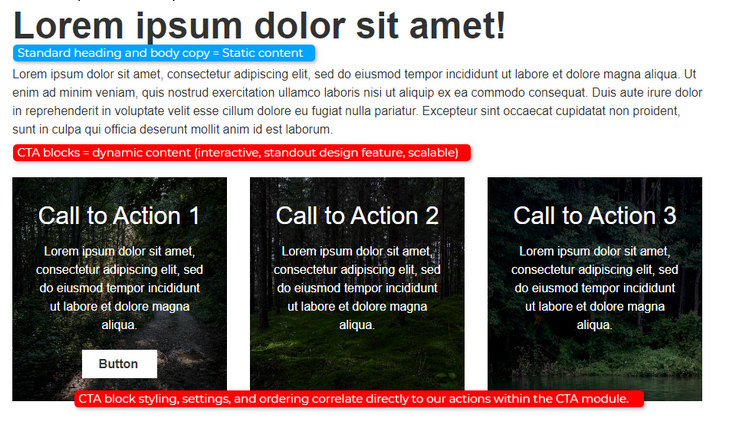
Category: Intro to Content Management Systems
Tags: page editor, modules
